
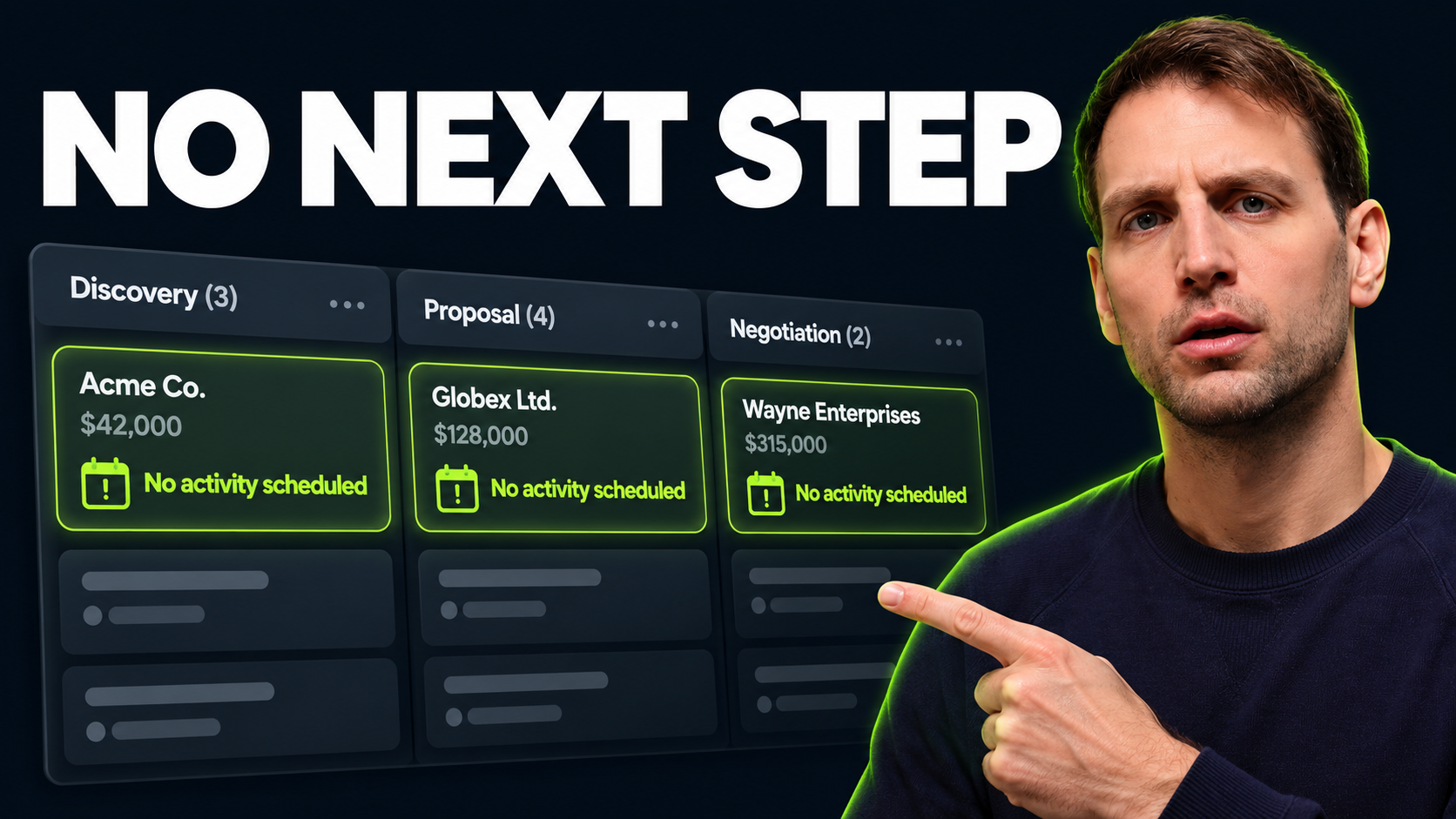
Your HubSpot portal is probably full of deals you've simply forgotten about. They aren't lost and they aren't won. They sit in a stage, look healthy in the forecast, and nobody has planned what happens next.
Your pipeline shows the deal stage, the amount and, hopefully, the close date. Out of the box, it doesn't show whether a deal is getting the follow-up it needs.
There's a simple fix. In this guide you'll build one deal tag and one saved view that surface all your HubSpot deals with no next step, so every open deal gets followed up. The setup takes a few minutes, and your reps don't have to enter anything new.
I've been setting up HubSpot for B2B sales teams since 2015, and this is one of the first views we build for sales managers at Superwork.
The short answer
To find forgotten deals in HubSpot, create a deal tag called "No next step" with two conditions: the Next step property is unknown, and the deal is not closed. HubSpot adds the tag to matching deals automatically. Then filter a saved deal view by that tag and review it every Monday.
Why do deals get forgotten in a CRM?
Deals get forgotten because most CRMs show where a deal is, not whether anyone is working on it. This is true in HubSpot, Salesforce, Pipedrive and every other CRM I've worked in.
In my experience, reps rarely get help setting up the views they need. The information that matters to them is in the CRM, but it isn't easy to reach.
So your reps end up playing detective. They scroll through the pipeline, open deals one by one, and try to remember which ones they've followed up. Some deals slip through, and you find out at the end of the quarter.
The goal is the opposite. You want to remove everything that isn't relevant to a rep, and make it obvious what to work on: one click, and here are the deals that need attention.
Next step or Next activity date: which property should you use?
Use both, because they track different things. Next step is a text property where a rep writes what they plan to do. Next activity date is a date HubSpot fills in by itself when a future activity is scheduled on the deal.
| Next step | Next activity date | |
|---|---|---|
| What it holds | The planned action, in the rep's own words | The date of the next upcoming activity |
| Who fills it in | The rep | HubSpot, automatically |
| What it tells you | Whether there is a plan, and how good it is | Whether something is booked in the calendar |
| Weak spot | Text goes stale if nobody updates it | An overdue task leaves it empty |
A deal can have one without the other. A rep can write "send proposal" and never schedule it, or have a meeting booked without a written plan.
This guide builds the tag on Next step, because the written plan gives you a quality check as a sales manager. You can read it and judge whether it's a real next step. Later in the guide you'll see how to add a second tag for deals with nothing scheduled.
Want more HubSpot setups like this one? Join the Superwork newsletter and get them in your inbox.
Step 1: Replace per-rep views with shared default views
Start by giving every rep the same small set of saved views. A saved view in HubSpot is a filtered list or board of records that you can name, pin and share with your team.
Views and filters are among the most basic features in HubSpot, and most companies don't use them enough. What I usually see is a team of ten reps with ten nearly identical views: Maria's deals, John's deals, and so on.
You don't need one view per rep. A view called "My deals" filters on the logged-in user as deal owner, so it shows each rep their own deals. One view works for everyone, and your RevOps team gets a clean, organized set of views.
These are the default deal views I'd set up:
- My deals: open deals owned by the person looking at the view
- Overdue close date: open deals with a close date in the past
- No activity: open deals nobody has touched recently
- High value deals: open deals above an amount you choose
- No next step: the view this guide builds
Each view can be a table, a board, a calendar or a report. A table is best for working through a list, and a board is best for seeing where deals sit in the pipeline.
Step 2: How do you create a "No next step" deal tag in HubSpot?
You create a "No next step" deal tag in your deal pipeline settings, with two conditions: Next step is unknown, and the deal is not closed. A deal tag is a colored label that HubSpot adds to a deal automatically when the deal matches criteria you set.
Deal tags are a bit of a hidden feature. They show up on deal cards in the board view and as a column in the table view, so anyone can see the state of a deal at a glance.
The important part is that nobody sets them by hand. A tag isn't a property a rep has to remember to update. HubSpot applies and removes it based on your criteria, which means less data entry and a more reliable picture.
Here is how to build it:
- Go to your deal pipeline settings and open the Deal tags tab. In newer accounts you'll find pipeline settings under the data model.
- Click Add tag and choose to create one from scratch.
- Name it "No next step" and add a short description, such as "Open deal with an empty next step".
- Pick a color. I use red for serious problems and yellow or orange for medium ones.
- Add the first filter: Next step is unknown.
- Add the second filter: the deal is not closed.
- Save the tag.
You need Super Admin permissions to create tags. Deal tags are available from Starter, and Professional and Enterprise accounts can set tags per pipeline (HubSpot Knowledge Base).
While you're there, build one or two more. An "Overdue" tag for deals past their close date is the one I'd add first. A deal can carry several tags at once, so one deal can show both "No next step" and "Overdue".
Step 3: Filter a deal view by the tag
Now turn the tag into a view. Deal tags work as a filter in saved views, so the view always shows exactly the deals carrying the tag.
- Go to your deals page and add a new view. Name it "No next step".
- Open the filters and add Deal tags is any of "No next step".
- Add the columns you need to act on the list: deal name, deal owner, deal stage, amount, close date, next step and deal tags.
- Sort by amount, highest first, so the biggest deals are at the top.
- Share the view with your sales team and pin it.
If you want a personal version for reps, add a filter for deal owner is the current user. As a sales manager, leave that filter out so you see the whole team.
Switch between the table and the board when you review. The table is a worklist. The board shows you which stages the forgotten deals are sitting in, and the tags appear right on the cards.
Not sure your pipeline is set up for this? Talk to Superwork about your HubSpot sales setup.
Why does HubSpot say "no activity scheduled" when a rep has a task?
HubSpot says "no activity scheduled" because only a future activity on the deal itself counts. If you add a second tag for deals with nothing booked, using Next activity date is unknown, you'll meet this quickly. A rep will tell you they have a task for that deal, and the deal is still on the list.
There are three common reasons:
- The task is overdue. A task with a due date in the past leaves Next activity date empty (HubSpot Community). The fix is to complete it or move it to a future date.
- The task sits on the contact or company. If it isn't associated with the deal, the deal doesn't see it (HubSpot Community). The fix is to associate the task with the deal.
- The contact is in a sequence. Sequence emails go to the contact, so the deal can still show nothing scheduled (Babelquest). The fix is a task or meeting on the deal.
The rule for reps is simple. Every open deal needs a written next step, and a task or meeting on the deal with a future date.
Settle this with your team early. If reps and managers argue about whether the list is right, nobody trusts it, and a view nobody trusts doesn't get used.
How do you clear the list? The Monday morning routine
You clear the list by opening the "No next step" view once a week and giving every deal on it a next step, starting with the largest. For most teams this takes about ten minutes on a Monday.
Picture a rep starting the week. There's prospecting to do, calls to make, LinkedIn messages and cold emails to send. Open deals need attention too, and this view tells the rep which ones.
For each deal on the list, do one of four things:
| Situation | What to do |
|---|---|
| The rep has a plan but hasn't written it down | Fill in Next step, in the table or on the deal |
| The plan is written but nothing is booked | Schedule a meeting or create a task on the deal |
| The deal is dead | Close it as lost, with a reason |
| The deal is stalled | Call the stakeholders and get a yes or a clear no |
A good next step is specific. "Follow up" tells you nothing. Compare it with this: "Discussed a demo call with the CEO for Monday. He hasn't accepted the invite. Following up after lunch."
As soon as the rep writes the next step, HubSpot removes the tag and the deal leaves the view. You can watch the list shrink as you work through it.
If you want to go one step further as a sales manager, make Next step a required property when a deal moves from one stage to the next. Then a deal can't progress without a plan.
Frequently asked questions
Which HubSpot subscription do you need for deal tags?
Deal tags are available on Starter, Professional and Enterprise. On Starter a tag applies to all pipelines, while Professional and Enterprise accounts can create tags for individual pipelines. You need Super Admin permissions to create or edit them (HubSpot Knowledge Base).
Can you use deal tags in reports and workflows?
Yes. Once a tag exists, the Deal tags property can be used in saved views, reports, workflows and segments. That means you can report on how many open deals have no next step, or have a workflow create a task for the owner when the tag appears.
What is the difference between Next step and Next activity date in HubSpot?
Next step is free text written by the rep, describing the planned action. Next activity date is filled in by HubSpot when a future task, meeting or logged activity exists on the deal. A deal can have either one without the other.
Should every rep have their own saved views?
No. One shared set of views is easier to maintain and gives everyone the same picture. A filter on the current user as deal owner makes a single "My deals" view work for the whole team.
Does this work for other objects than deals?
Yes. HubSpot has the same tag feature for tickets, leads and other objects with pipelines, so you can flag tickets or leads with no follow-up in the same way.
Every open deal should have a next step
Your reps generate a lot of data just by doing their job. Tags and views are a way of presenting that data so nobody has to go into HubSpot and play detective.
The setup is three steps. Give the team a shared set of default views, create a "No next step" deal tag, and filter a view by it. Then open that view every Monday and clear it from the top.
Once it's in place, finding HubSpot deals with no next step takes one click, and a forgotten deal becomes the exception.
For more HubSpot setups for sales teams, join the Superwork newsletter. If you'd like help with your own pipeline, talk to Superwork.
About the author: Thorstein Nordby is the founder of Superwork, a HubSpot partner, and has been setting up HubSpot for B2B sales teams since 2015.
Sources
- HubSpot Knowledge Base: Color-coded object tags
- HubSpot Knowledge Base: HubSpot's default deal properties
- HubSpot Community: Find deals with no upcoming task
- HubSpot Community: "No Activity Scheduled"
- Babelquest: Reflect sequence activity against a deal