HubSpot Buying Groups is a Sales Hub feature that maps every stakeholder in a deal as a visual org chart, while the buying role property tags each contact with the part they play in the purchase — Decision Maker, Champion, Blocker, and more.
Together they let RevOps teams model the full buying committee instead of pinning a deal to one contact. Buying Groups is generally available on Enterprise and now rolling out to Professional.
That's the short version.
Here's the longer one — the one that actually helps you set it up and get reporting out of it.
Because here's the problem most HubSpot portals have: the data model was built for single-threaded deals, and B2B buying stopped working that way a long time ago.

Gartner pegs the typical enterprise purchase at 6 to 10 decision-makers. You know how that plays out. Your champion loves you. Then the CFO surfaces on day 45 asking questions nobody prepped for. Legal appears on day 60 with redlines. The deal slips a quarter.
Buying Groups and the buying role property are HubSpot's fix for exactly that.
In this guide you'll learn what each piece does, how to turn it on, and — the part that matters — how to operationalize it so your pipeline reviews and forecasting actually improve.
Let's get into it.
What is the buying role property in HubSpot?
The buying role property is a multi-select contact property that defines the part a person plays in a purchase decision. One contact can hold several roles, and multiple contacts can share a role — because real committees have two budget holders and a champion who's also the end user.
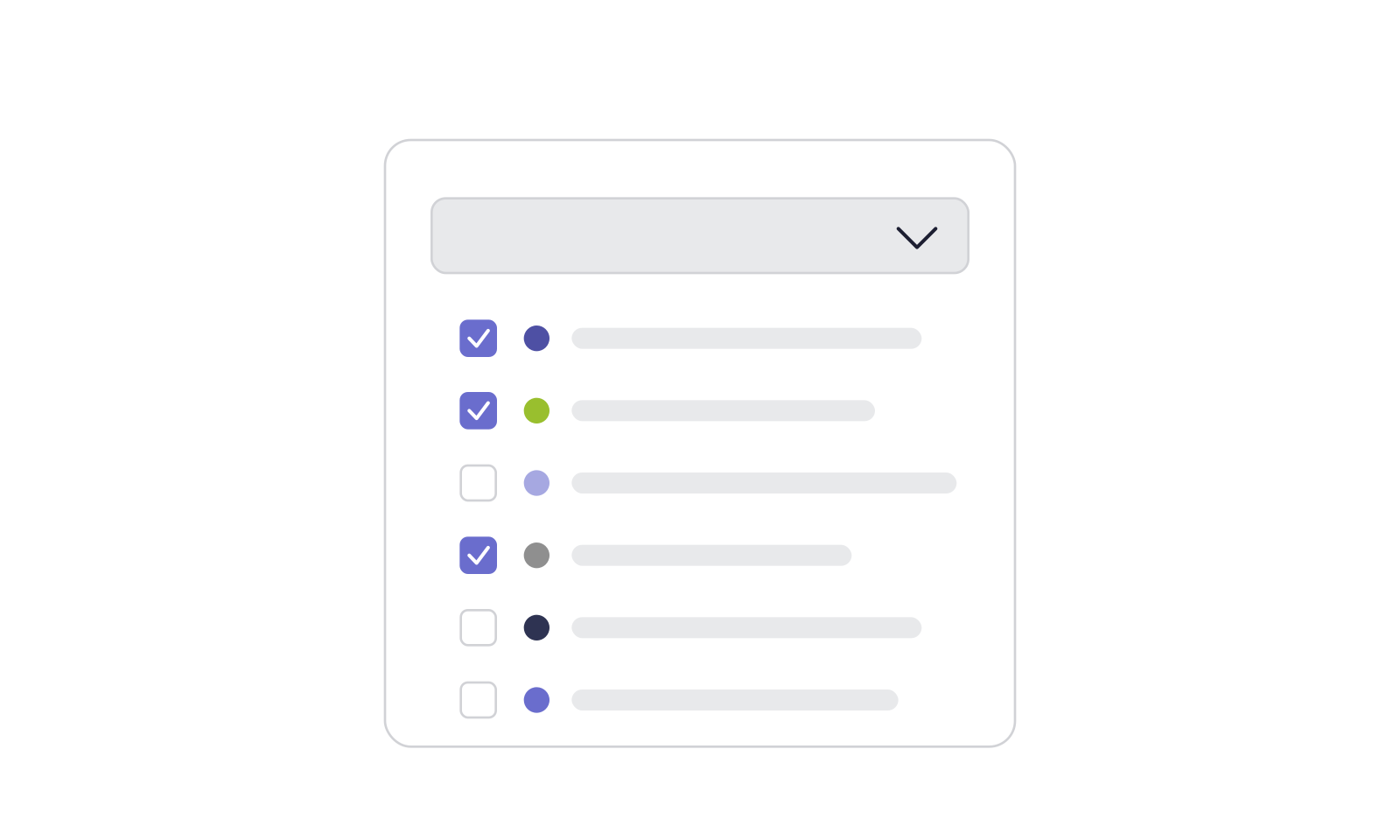
HubSpot ships seven default buying roles:
| Buying role | What it means |
|---|---|
| Decision Maker | Makes the final call to purchase |
| Budget Holder | Controls and approves the spend |
| Champion | Advocates for you internally |
| End User | Actually uses what you sell |
| Blocker | Can stall or kill the deal |
| Executive Sponsor | An exec who acts as champion or influencer |
| Legal and Compliance | Signs off on terms, security, and contract fit |
You can add your own roles too — "Procurement," "Technical Evaluator," "Security Reviewer" — to match how your market really buys.
One catch worth knowing now: the seven default values can't be deleted. You can only add to them. So build your taxonomy around the defaults, not against them.
One nuance RevOps needs to flag
There's a long-running debate in the HubSpot community: should buying role be a deal property instead of a contact property?
The argument is fair. A person can be a Champion on this year's renewal and a Blocker on the next. But as built, the role lives on the contact and gets deal context through the buying group itself.
If you sell into the same accounts repeatedly, keep that in mind. A single contact-level role won't automatically change per opportunity.
What are HubSpot Buying Groups?
Buying Groups is a HubSpot Sales Hub tool that visualizes all the stakeholders in a deal as an org chart on the company record, so reps can see who's involved, what role each person plays, and how engaged they are.
The buying role property tags people. Buying Groups turn those tagged people into something your team can actually see and work — not values buried on contact records.
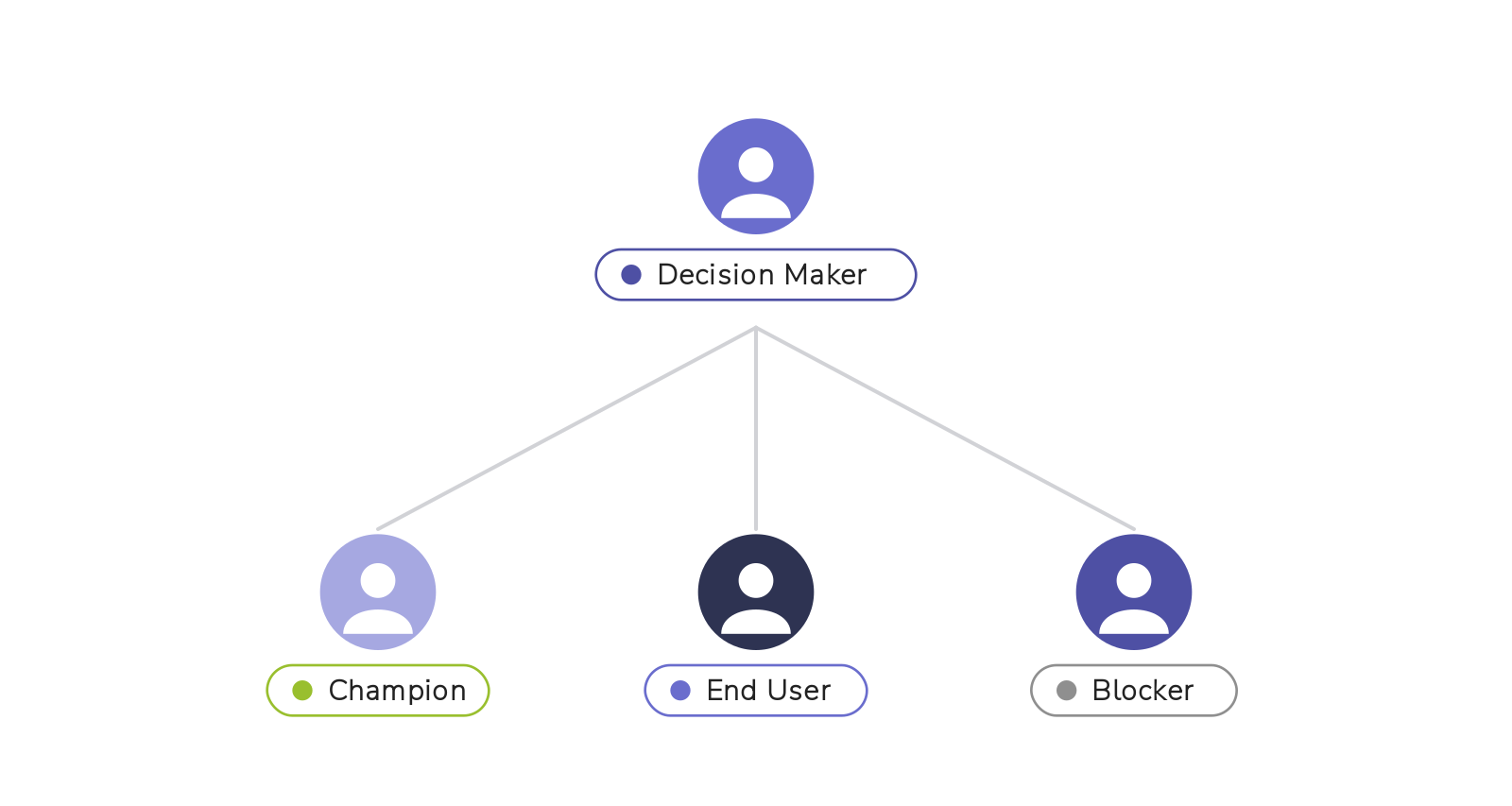
Inside a buying group you get:
- An org chart showing manager/employee relationships
- Custom relationship lines (with notes and color coding) for non-hierarchical connections
- Per-contact buying roles
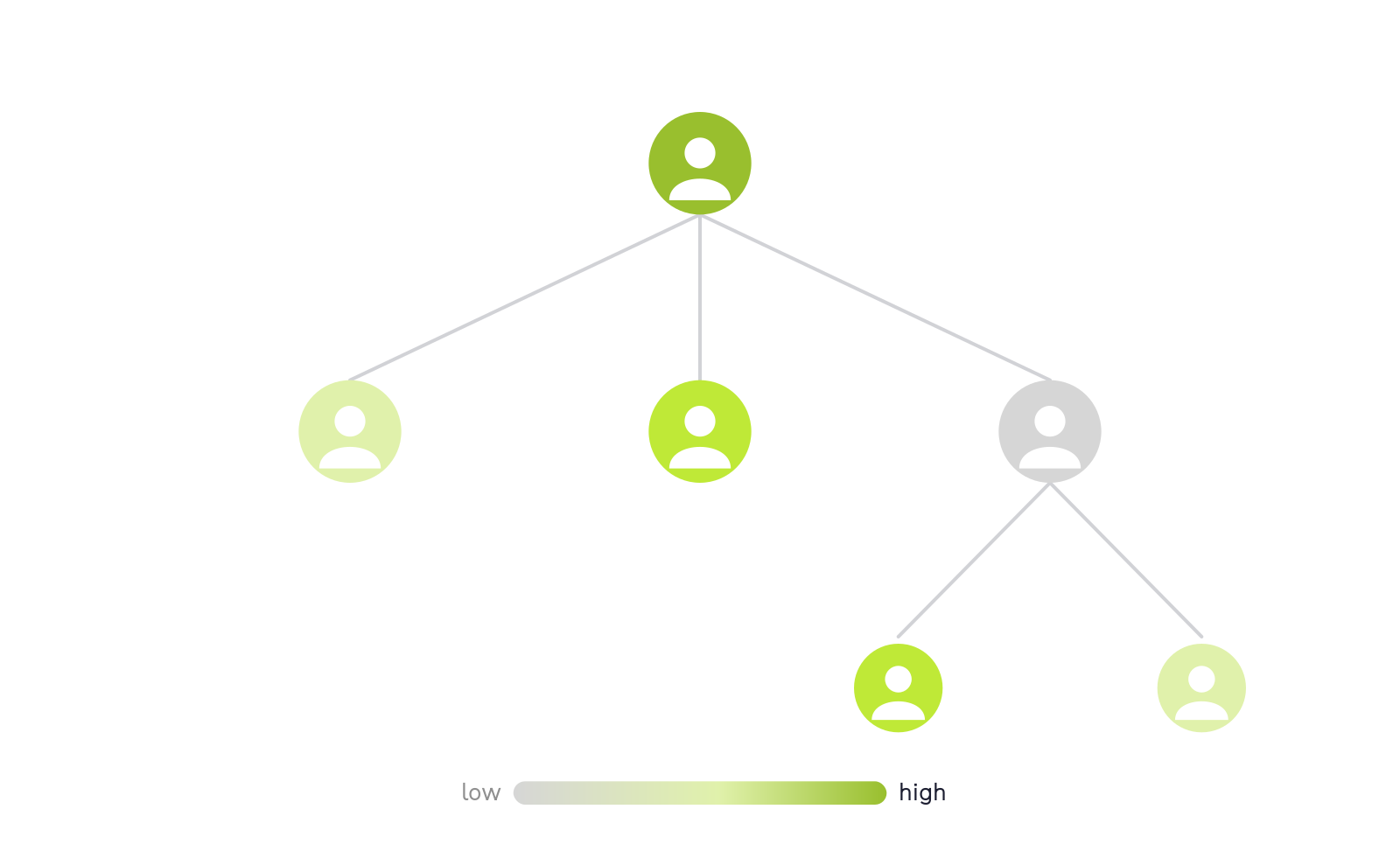
- An activity heatmap that shows how engaged each stakeholder is across sales or marketing activity
That heatmap is the part reps love. It turns "the economic buyer has gone quiet for three weeks" into something you can see instead of discover in a lost-deal post-mortem.
Who can use it? (availability + requirements)
Before you plan a rollout, the fine print:
- Generally available with: Sales Hub Enterprise and Service Hub Enterprise
- Rolling out to: Sales Hub Professional and Service Hub Professional (beta — Super Admins can opt in from Product Updates)
- Seat required: an assigned Sales or Service seat to edit a buying group
- Region note: packaging can differ by region. If you're in the Nordic Region Limited Release, your portal may show Buying Groups on Professional already — always confirm what your own subscription exposes
The takeaway: don't assume "Enterprise-only." Check your portal, because the Professional rollout and regional packaging mean availability is wider than the headline tier suggests.
Why buying groups matter (the data behind multi-threading)
Quick gut-check before the setup steps. The whole point here is multi-threading, and the numbers back it up:
- 6–10 decision-makers in a typical enterprise B2B purchase (Gartner)
- Deals with an engaged Executive Sponsor close at materially higher rates than single-threaded ones
- The #1 reason "qualified" deals slip? A stakeholder nobody mapped surfaces late
Single-threaded deals are fragile. One person changes jobs, goes cold, or gets overruled — and your forecast evaporates. Buying Groups give you a structured way to find and fix that risk before it costs you the deal.
How to set up Buying Groups in HubSpot (step by step)
Here's the full setup. Five steps.
Step 1: Add the Buying Group card to company records
Buying Groups live on the company object, and the card is hidden by default.
Go to your company record customization settings and add the Buying Group card from the card library to the company record layout. No card, no entry point for your reps.
Step 2: Choose how groups get built
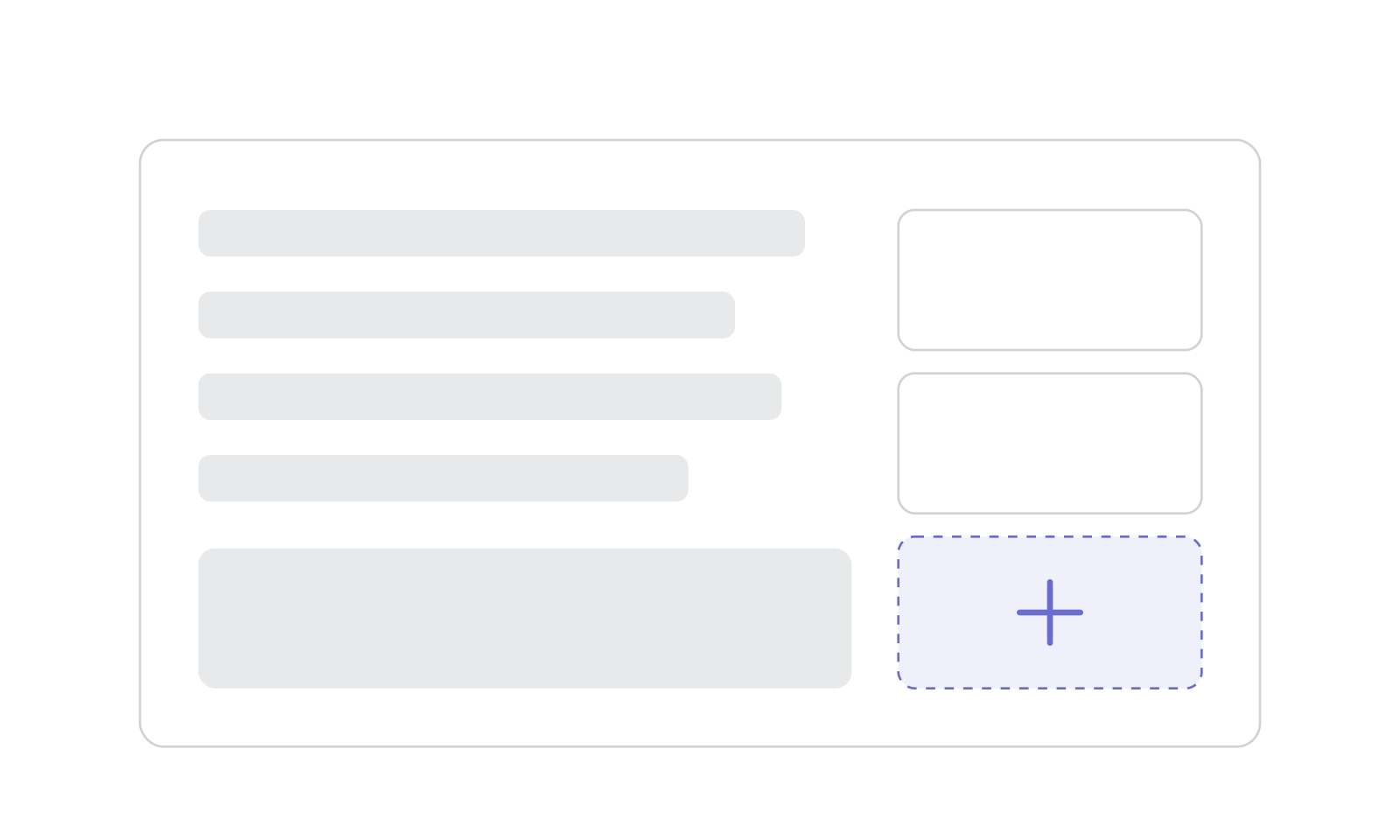
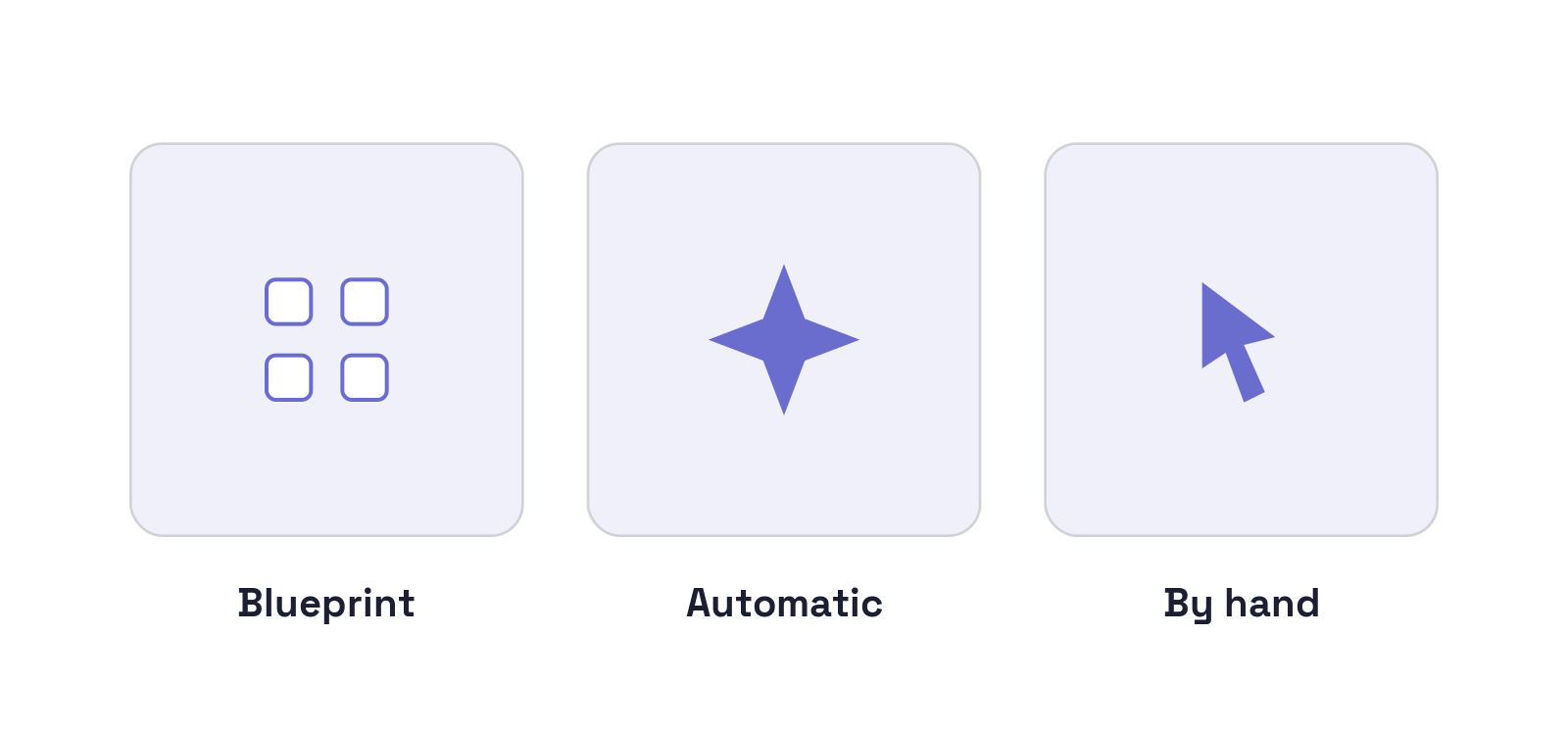
HubSpot gives you three ways to create a buying group org chart. Pick based on your data quality:
| Method | Best for | Limit |
|---|---|---|
| Create from a blueprint | Repeatable sales motions into similar org structures | None — you define the template |
| Automatically build | Fast starts on smaller accounts | Companies with under 100 associated contacts |
| Assemble by hand | Strategic, high-touch accounts | Most effort, most control |
For big accounts (100+ contacts) the auto-builder won't run — so a blueprint is your practical starting point. Map the roles that matter instead of charting everyone.
Step 3: Build a blueprint (do this first if your motion is repeatable)
Blueprints are where RevOps adds the most leverage. Every rep starts from the same committee map instead of improvising.
To build one:
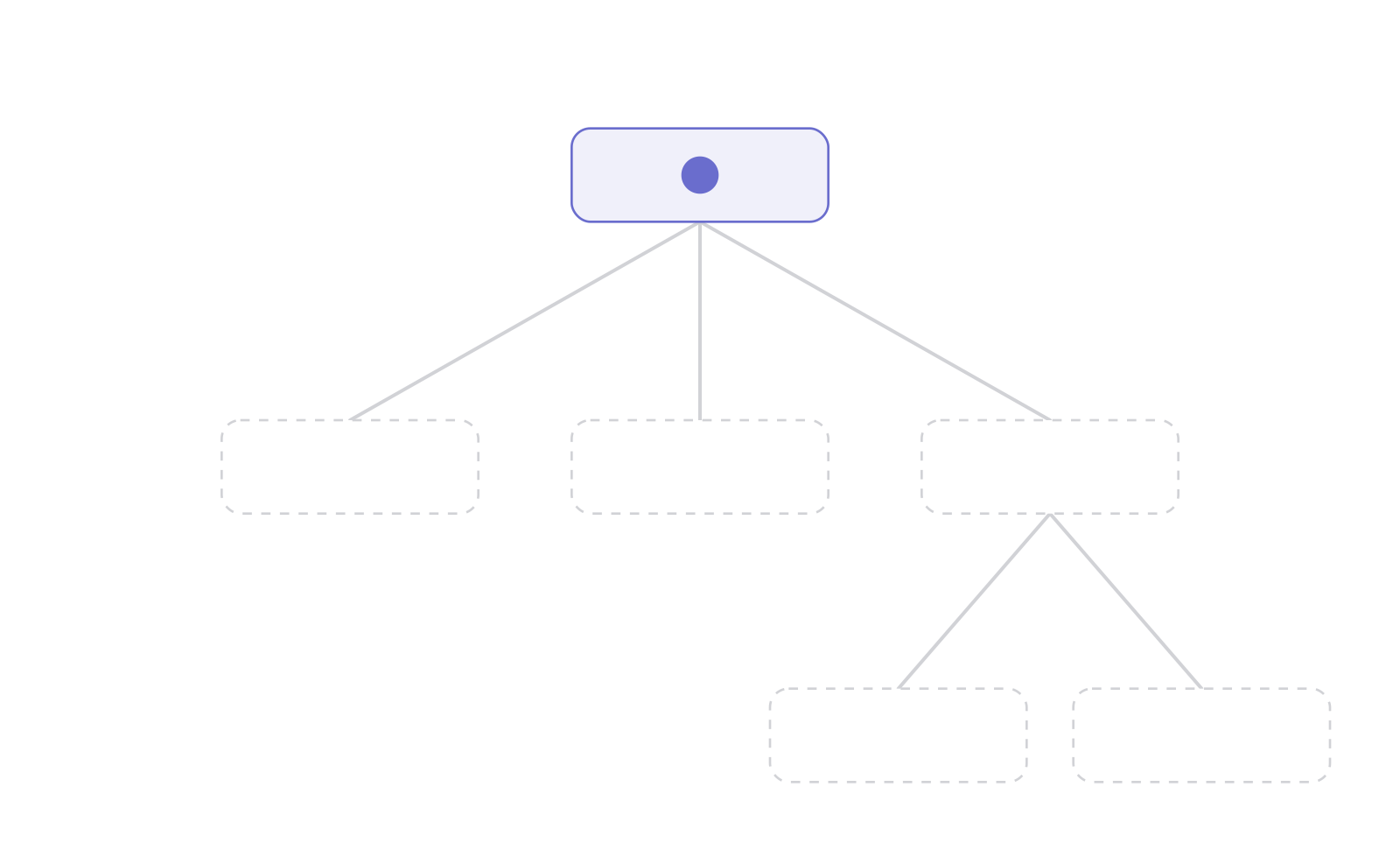
- In the Buying Group card, click Create a Buying Group → Buying Group Blueprint → Create your first Blueprint.
- Name the blueprint (click the pencil icon, type, save).
- Click + Add New Buying Group to define the committee shape.
- Add and edit job titles. The editor seeds a CEO title automatically — click any title to change it.
- Click Save and exit.
Step 4: Populate roles and relationships
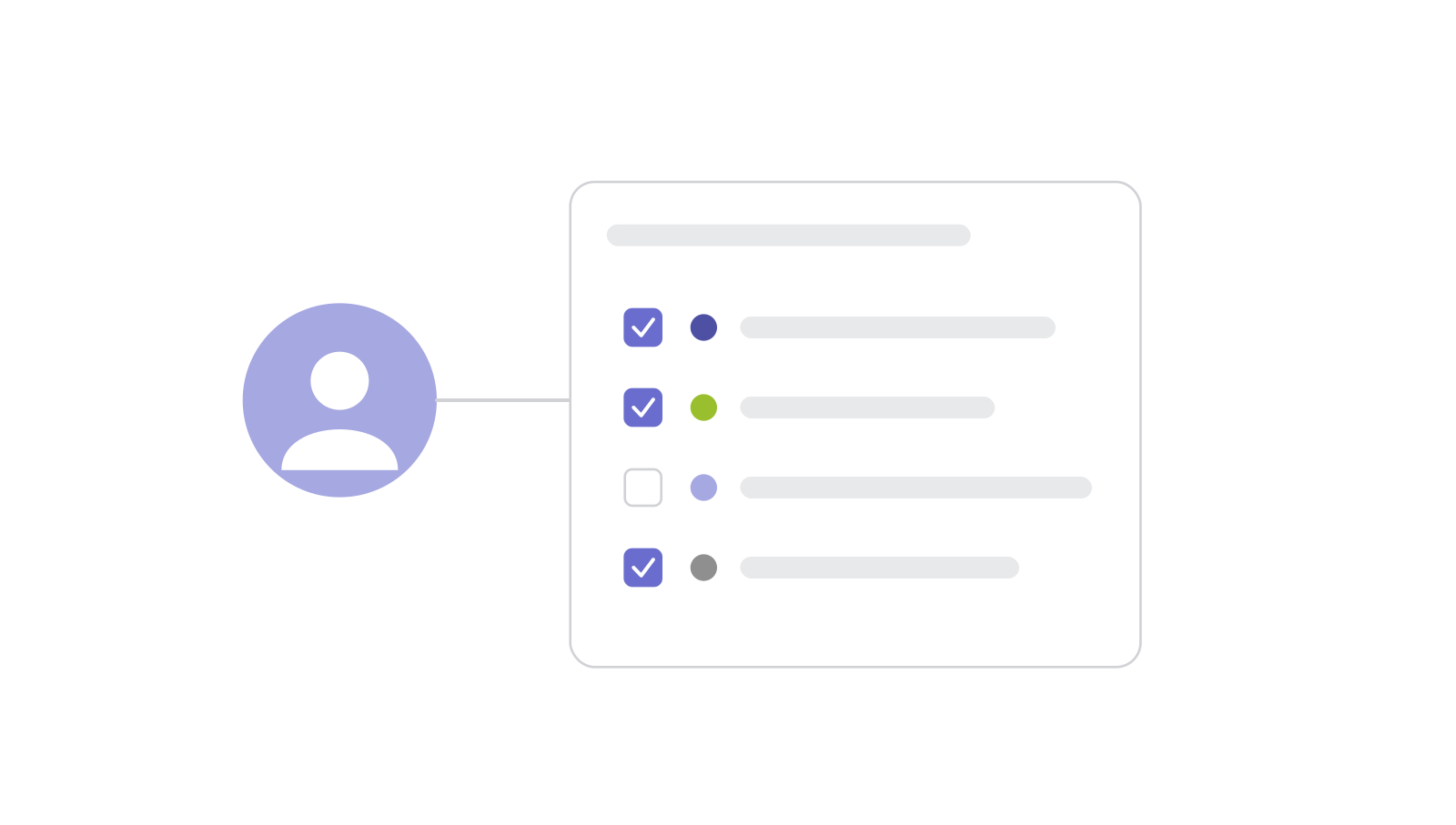
Open a buying group, then click any contact to:
- Set buying role — apply one or more of the values above
- Set property — update other contact fields inline
- Add employee / Add manager — build the hierarchy
- Swap HubSpot contact — replace a placeholder with a real person
- Add relationship — draw a custom line (e.g., "Champion → Exec Sponsor: warm intro path")
Changes save automatically. Refresh the company record to see them on the card.
Step 5: Turn on the activity heatmap
Inside the editor, toggle Activity Heatmap, pick Sales Activity or Marketing Activity, filter to the activities you care about, and drag the color-scale slider to set your timeframe.
Now disengagement is visible at a glance. That's your early-warning system.
How to operationalize buying groups (where RevOps earns its keep)
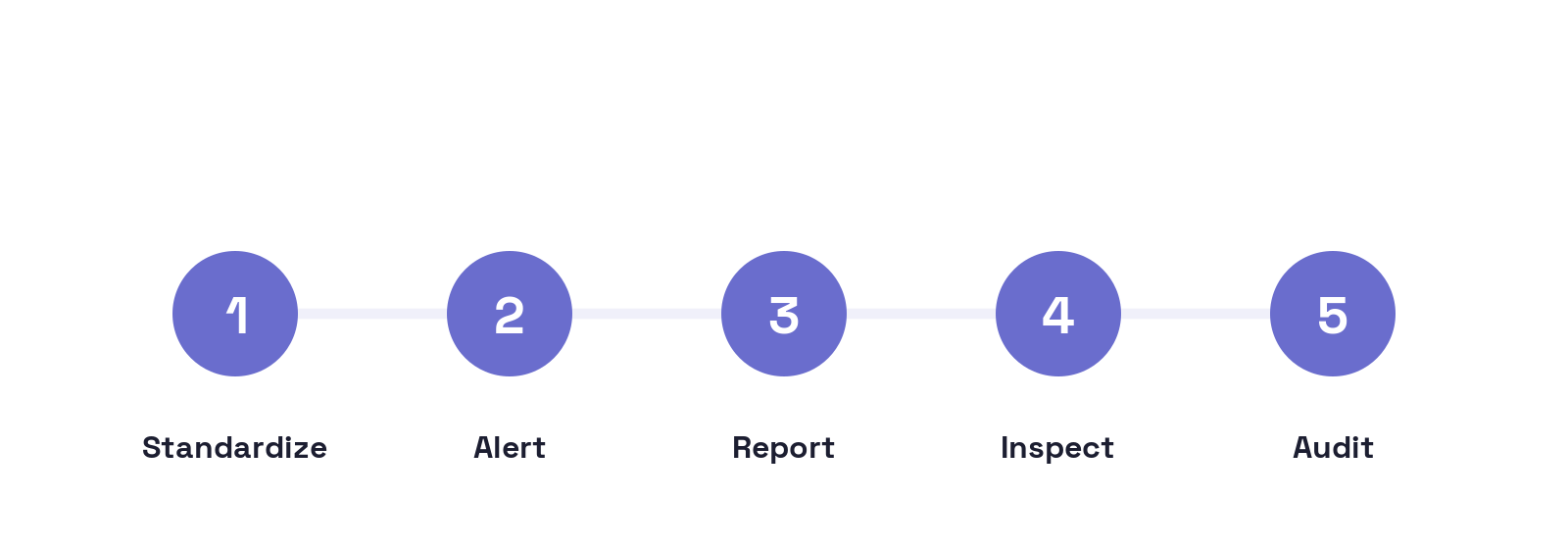
Setup is the easy 20%. The value is in the process you wrap around it. Five plays:
1. Lock your role taxonomy before reps start tagging. If half the team uses "Executive Sponsor" and the other invents "Exec Champion," your reporting is junk. Define the values, document them, add custom roles once — centrally.
2. Build a single-threaded deal alert. Flag open deals above your average contract value that have only one associated contact, or that are missing a Decision Maker or Budget Holder. That list is your pipeline-review coaching agenda.
3. Report on committee completeness, not contact count. "What's our win rate when an Executive Sponsor is engaged vs. not?" is a question the buying role property finally lets you answer — and it's far more predictive than raw activity counts.
4. Make heatmap review part of deal inspection. In forecast calls, pull up the buying group on at-risk deals. A cold decision maker three weeks before close is a risk you want surfaced by data, not discovered later.
5. Audit the contact-vs-deal nuance. Because role sits on the contact, review accounts you sell into repeatedly so a stale single value doesn't mislead reps on the next opportunity.
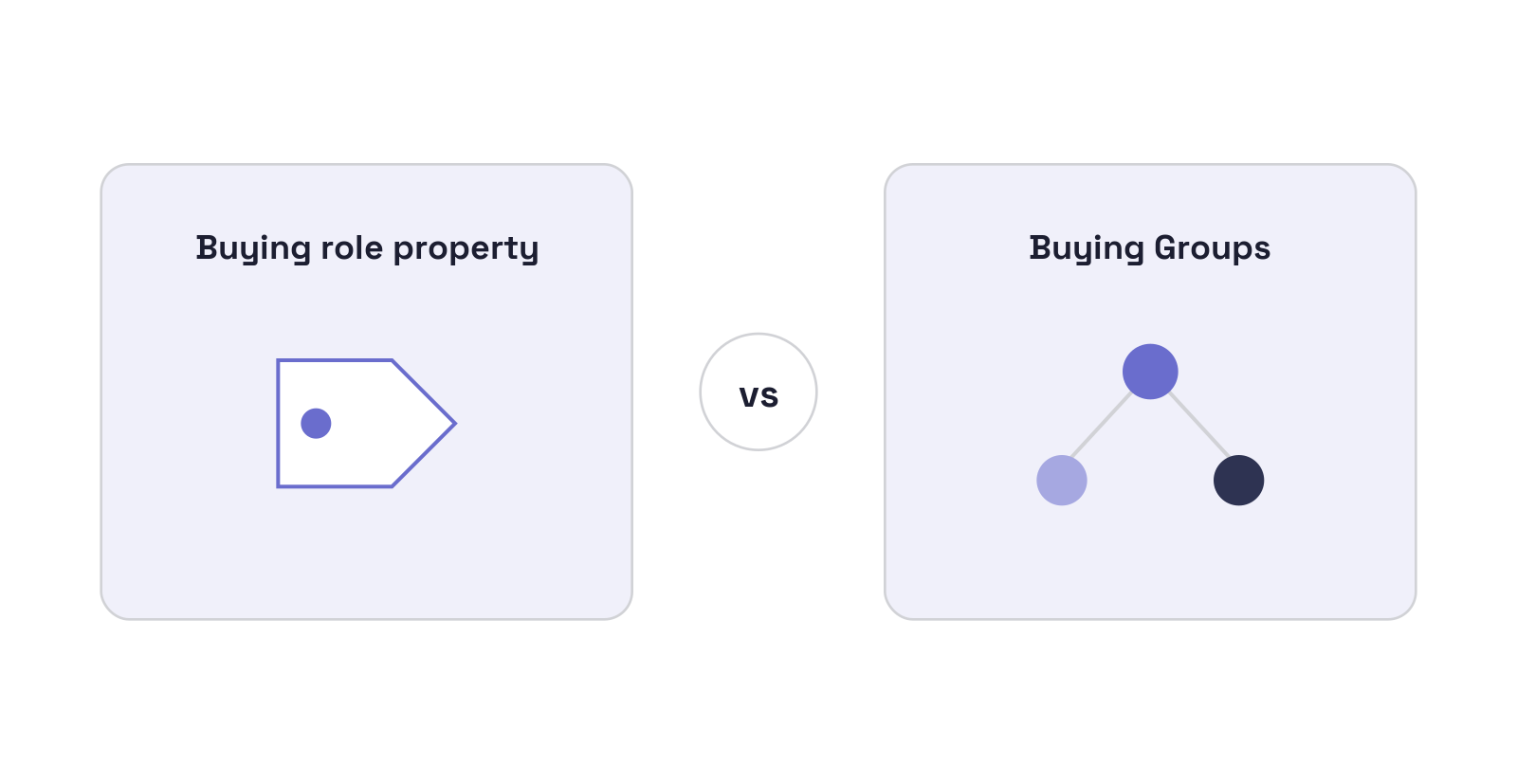
Buying role property vs. Buying Groups: what's the difference?
| Buying role property | Buying Groups | |
|---|---|---|
| What it is | A contact property | A visual feature on the company record |
| What it does | Tags a person's role in the purchase | Maps the whole committee as an org chart |
| Lives on | The contact | The company |
| Best for | Structured, reportable role data | Working the deal + spotting engagement risk |
| Availability | Standard contact property | Enterprise (GA), Professional (rolling out) |
Short version: the property is the data. Buying Groups is the workspace that makes the data usable.
Frequently asked questions
What HubSpot plan do I need for Buying Groups?
Buying Groups is generally available on Sales Hub Enterprise and Service Hub Enterprise, and is rolling out to Sales Hub Professional and Service Hub Professional via beta (Super Admins can opt in from Product Updates). Editing a buying group requires an assigned Sales or Service seat. Packaging can vary by region — for example, the Nordic Region Limited Release — so confirm what your own portal shows.
What are the default buying roles in HubSpot?
The seven defaults are Decision Maker, Budget Holder, Champion, End User, Blocker, Executive Sponsor, and Legal and Compliance. You can add custom roles, but the defaults can't be deleted.
Can a contact have more than one buying role?
Yes. The buying role property is multi-select, so one contact can hold several roles (e.g., Champion and End User), and multiple contacts can share the same role.
Is buying role a contact property or a deal property in HubSpot?
It's a contact property. Many practitioners argue it should be a deal property since a person's role can change per opportunity, but HubSpot applies deal context through the buying group rather than per-deal role values.
How do I create a buying group automatically?
On the company record, open the Buying Group card, click Create a Buying Group → Automatically Build. This works only for companies with fewer than 100 associated contacts; larger accounts should start from a blueprint.
Does the buying role property work without Buying Groups?
Yes. The buying role property is a standard contact property you can use, report on, and automate against on any plan that exposes it — but the org-chart visualization and activity heatmap require Sales/Service Hub Enterprise.
The bottom line
The buying role property gives you structured, reportable data on who does what in a deal. Buying Groups make that committee visible and workable, with engagement signals your reps can act on.
The feature does the easy part. The durable value comes from RevOps discipline: a locked taxonomy, completeness reporting, single-threading alerts, and heatmap review baked into your deal process.
On Sales Hub Enterprise — or a Professional portal where it's already live? Start narrow. Turn on the card, build one blueprint for your core buying motion, and enforce committee mapping on deals above your average contract value. Prove the win-rate lift on multi-threaded deals — then scale it.