Most teams use HubSpot lead status wrong.
They leave it blank. They let it go stale. Or they confuse it with the new Leads object and end up running two systems that fight each other.
This guide fixes that.
You'll learn exactly what lead status is, how it's different from lifecycle stage and the Leads object, what the 8 default values really mean, and how to automate the whole thing so your reps never touch the dropdown again.
Plus the real workflows we run at Superwork to keep it accurate — illustrated step by step.
Let's get started.
What is HubSpot lead status?
HubSpot lead status is a contact property — a dropdown field — that tracks the sub-stages of your sales process. It answers one question: what is the rep doing with this contact right now? Lifecycle stage tells you where someone sits in the funnel overall. Lead status tells you what's happening with them today.
That's the whole idea in two sentences.
It lives on the contact record (and on company records too). It ships with 8 default values. And it's fully customizable.
Here's the framing to keep in your head for the rest of this guide:
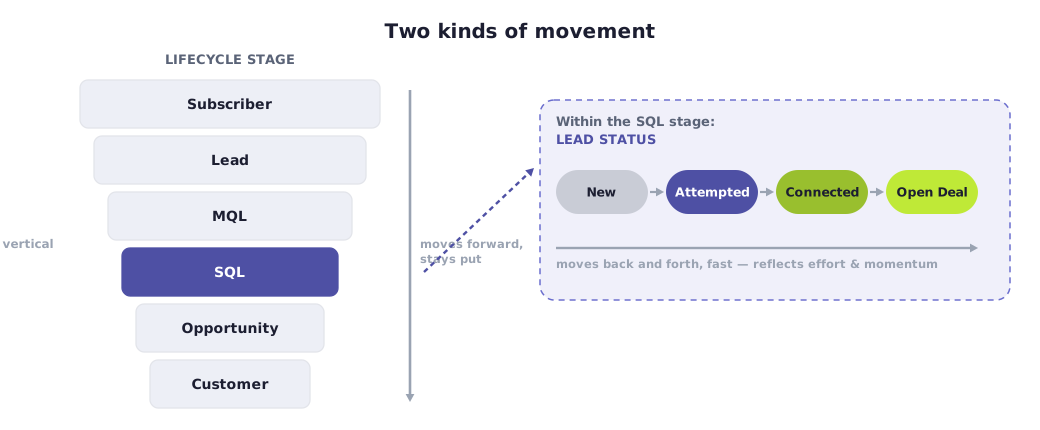
- Lifecycle stage = vertical movement through the funnel. Subscriber → Lead → MQL → SQL → Opportunity → Customer.
- Lead status = movement within the MQL and SQL stages. New → Attempting → Connected, and back again.
Quick example that makes it click:
A contact can be a Sales Qualified Lead while their lead status reads "Attempted to Contact" (nobody's actually talked to them yet). The funnel says that the contact is "qualified." Lead status says that nobody has followed up with that contact yet.
Lead status vs. lifecycle stage vs. deal stage
Three properties. Three different jobs. Mix them up and your reports start lying to you.
| Property | What it tracks | How it moves |
|---|---|---|
| Lifecycle stage | How qualified someone is, funnel-wide | Forward, sticky |
| Lead status | What the rep is doing with them now | Back and forth, fast |
| Deal stage | An open sales opportunity in your pipeline | Through deal stages |
Rule of thumb: a deal stage only exists once there's a real opportunity worth forecasting. Lead status covers everything before that — the messy prospecting work that lifecycle stage is too high-level to capture.
Lead status and the Leads object: use both, not either/or
Here's the biggest mix-up in HubSpot lead management — get this one straight first.
Lead status (the property) and the Leads object are two different tools that do two different jobs — and you should use both. Lead status is a single dropdown on the contact. The Leads object is a separate CRM object with its own pipeline: the workspace where a BDR/SDR works every MQL.
The Leads object works differently in three big ways:
It's a record, not a field. A lead is "object lite" — it always ties back to a contact or company, but it's its own thing.
It supports many leads per contact. When a prospect goes cold and you re-engage them six months later, you get a new lead record instead of overwriting the last attempt. Lead status only ever shows one value at a time.
It has its own stages: New → Attempting → Connected → Qualified / Disqualified. These are not the same as the lead status values.
The lead pipeline isn't "for outbound"
Forget the common myth that the Leads object is only for cold outbound. Whether a lead arrived through a form or was sourced cold makes no difference to whether you use it. The lead pipeline exists to gather every MQL in one place so a BDR/SDR can work it — warm or cold. Inbound and outbound leads sit in the same pipeline.
To keep them straight, add a lead source tag — a simple Inbound / Outbound property on the lead. It doesn't change which system you use; it just tells the rep whether to open with a warm "thanks for downloading our guide…" or a cold intro.
How they fit together
Run them together, every time:
- The Leads object (the pipeline) is the workspace — every MQL in one queue, assigned to a BDR/SDR and tagged inbound or outbound.
- Lead status (the field) is the detail on each contact — the sub-stage that says what's happening right now: New, Attempted, Connected, Open Deal.
- The usual setup: when a contact becomes an MQL, a lead record is created automatically so it drops into the pipeline; as the rep works it, lead status updates in step.
| Lead status (property) | The Leads object (pipeline) | |
|---|---|---|
| What it is | A dropdown field on the contact | A separate object with its own pipeline |
| Its job | Track the sub-stage of one contact | Gather every MQL in one place to work |
| Relationship | One value per contact | Many leads per contact over time |
| History | Overwrites | Keeps every prospecting cycle |
| Source | — | Holds inbound + outbound, side by side |
One catch worth planning for: the two don't sync by default. Moving a lead's pipeline stage won't change the contact's lead status, and vice versa. Wiring them together with automation is the job — and it's exactly what the workflows later in this guide do.
What lead status is actually for
Here's how we recommend using it at Superwork.
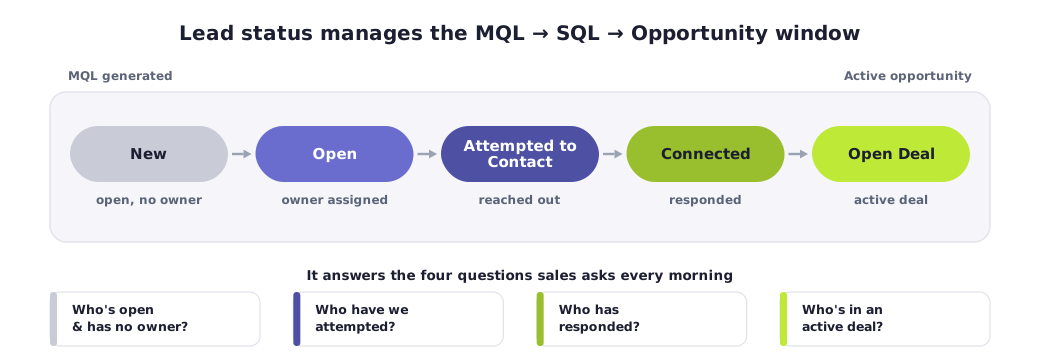
Lead status manages one specific window: the journey from the moment a contact becomes an MQL, through SQL, to an active opportunity. That handoff zone is exactly where leads slip through the cracks — and lead status is what keeps them visible while sales works them.
Used this way, it answers the questions your sales team asks every morning — and each one maps to a status:
- Which leads are open and without an owner? The ones sitting there waiting to be claimed. (New / Open)
- Which have we attempted to contact but heard nothing back? (Attempted to Contact)
- Which have responded and are now in a live conversation? (Connected)
- Which are in an active deal? (Open Deal)
Set it up right and any rep or manager can open a list view, filter by status, and instantly see where every MQL stands — who needs an owner, who needs a follow-up, who's gone quiet, and who's close to a deal. No digging through activity timelines required.
That's the lens for everything that follows.
Figure 6 — One list view, grouped by lead status, shows where every MQL stands.
The 8 default HubSpot lead status values
HubSpot ships with 8 defaults. Here's what each one actually means in practice — and what it tells you about your pipeline.

New — Hasn't been worked yet. Fresh inbound, an import, or manual entry. This is the rep's to-do list. A "New" pile that never shrinks = a speed-to-lead problem.
Open — Recognized as worth pursuing and usually assigned to a rep. The lead's been claimed, but real outreach hasn't necessarily started.
In Progress — Actively being worked. Watch this one: reps love to use it to "stake a claim" and avoid reassignment, sometimes before any outreach happens.
Open Deal — There's a live purchase conversation, tied to an actual deal. Controversial, because it overlaps with the Opportunity lifecycle stage (more on that in the mistakes section).
Unqualified — Not a fit, or no longer interested. Often kicks the contact back to marketing nurture. A high rate here points upstream to lead quality.
Attempted to Contact — You've reached out. No response yet. The workhorse status for any outbound motion.
Connected — They responded, but it's not an opportunity yet. Your connection rate (share of leads that reach this status) is one of the best health metrics you can build.
Bad Timing — Interested, but blocked by budget, approvals, or an existing contract. Long-term nurture — not the same as "Unqualified," and keeping them separate protects future pipeline.
How to customize HubSpot lead status
The 8 defaults are a starting point, not a rulebook.
To edit the values:
- Go to Settings → Data Management → Properties
- Switch to Contact properties
- Search "Lead status"
- Click Edit property
- Add, edit, remove, or reorder the options
- Save
Adding values is easy. Removing one is harder by design — HubSpot makes you reassign every contact off a status before you can delete it. Annoying, but it stops you from orphaning records.
One permissions gotcha: editing requires the specific "Edit property settings" permission. Being an Admin isn't automatically enough — a Super Admin has to grant it. So if the option's greyed out, that's why.
When you design your own values, give each status three things:
- A trigger — what event moves a lead into it
- An SLA — how long a lead can sit there
- An automation — what fires next
Keep the list short. A handful of statuses everyone respects beats nine nobody updates. For an MQL-to-opportunity motion, the core set we recommend is:
- New — an MQL with no owner yet (open, waiting to be claimed)
- Open — assigned to a rep, not yet worked
- Attempted to Contact — outreach sent, no reply
- Connected — they responded
- Open Deal — there's an active deal
Then keep Unqualified and Bad Timing as your two exit ramps. That's the whole journey, and nothing your reps have to guess about.
The pro move: split it into two properties
"Open Deal" mixes prospecting activity with deal activity in one field. So a lot of sharp RevOps teams use two properties instead:
- Lead status → reserved for the SQL-to-opportunity handoff
- A custom "Engagement Status" → tracks granular SDR activity
This separates prospecting from deals and kills the "Open Deal" redundancy. Slightly more setup, but worth it for SDR-heavy teams.
Heads up: HubSpot doesn't auto-set lead status to "New" when a contact is created. If you want that, you'll need a workflow — which brings us to the good part.
How to automate HubSpot lead status (with real workflows)
Here's the actual set of workflows we run at Superwork. They keep lead status accurate without a rep ever touching the dropdown.
Each one is dead simple: a single Edit record → Set Lead Status action. All the intelligence is in the enrollment trigger. We prefix every workflow with Data: so they group together and stay easy to audit.
Together, they walk a contact through the funnel on autopilot.
1. Set lead status to New
Fixes HubSpot's missing default.
Enrolls when: Create date is less than 1 day ago AND Contact owner is unknown AND lead status is empty. Then: sets lead status to New.
Now every fresh, unassigned contact starts on a real status instead of a blank field.
2. Set lead status to Open
The moment a lead gets picked up, it should stop looking untouched.
Enrolls when: Lead status is New AND Contact owner is known. Then: sets lead status to Open.
Assigning an owner is what flips it. No manual step.
3. Set lead status to Attempted to Contact
Catches leads that are being worked but haven't connected yet.
Enrolls when (any of several OR groups): Contact owner is known AND Number of sales activities is known — combined with a signal that no two-way connection happened yet: Recent sales email replied date is unknown, OR Recent conversion doesn't contain any Meetings, OR Date of last meeting booked is unknown. Then: sets lead status to Attempted to Contact.
4. Set lead status to Connected
The mirror image of #3.
Enrolls when: Contact owner is known AND Number of sales activities is known AND Recent sales email replied date is known (they actually replied). Then: sets lead status to Connected.
One caveat: "Recent sales email replied date" can behave inconsistently in some portals. Test it on real records before you trust it alone — pairing it with meeting-booked criteria makes it sturdier.
5. Set lead status to Open Deal
The handoff into a real opportunity.
Enrolls when: Lifecycle stage is Opportunity AND the contact is associated with a deal (Associated deals is known). Then: sets lead status to Open Deal.
Requiring both conditions matters. Lifecycle stage on its own can be set by automation or a stray import. Pairing it with a real deal association means "Open Deal" only fires when there's an actual purchase conversation on the record.
Why this set works
Three things make it reliable:
- Re-enrollment is off on every workflow, so contacts don't ping-pong between statuses.
- Triggers use activity signals (sales activities, replies, meetings) — not a single email send — so the status reflects real progress.
- Each workflow does one thing, so you can read and debug the whole system at a glance.
Want a lead status engine like this built for your portal? Talk to Superwork — we map every status to a trigger and an SLA, then automate it end to end.
One warning before you build: don't create loops. If one workflow sets lifecycle from lead status and another sets lead status from lifecycle, you can corrupt your SQL data. Document your logic in one place.
Advanced RevOps plays for lead status
This is where lead status stops being a tidy dropdown and starts driving revenue.
Speed to lead
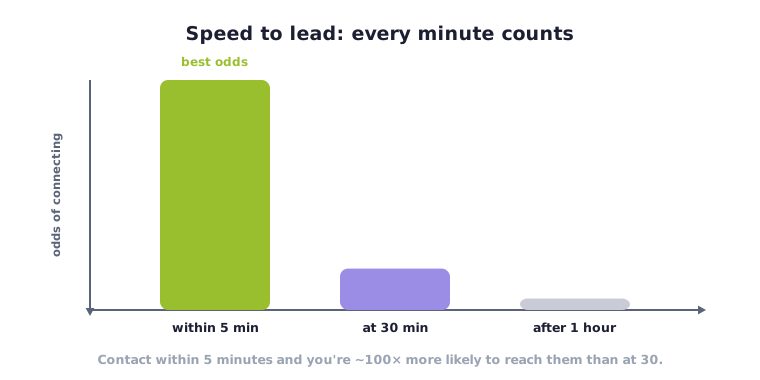
Your New, Open, and Attempted leads have a shelf life measured in minutes.
Contact a lead within 5 minutes and you're roughly 100x more likely to reach them than if you wait 30. Wait an hour and your odds of qualifying them crater.
So make "time from Open to first response" a frontline KPI, and use a workflow to reassign and alert when a lead sits untouched past your SLA.
SLA enforcement
Read your lead status distribution like a diagnostic:
- High Unqualified / Bad Timing → marketing is sending low-quality leads.
- High Open / In Progress with no activity → sales is claiming leads without working them.
Build an escalation workflow: MQL + no sales activity + 2 days → notify manager + flag "SLA Breach." The flag is for visibility, not punishment.
Handoff discipline
- Only advance to SQL when the status reflects real qualification — not a hopeful guess.
- Require a status whenever ownership changes, so records don't sit idle.
- If a lead goes cold, update lead status or suppress outreach — don't rewind the lifecycle stage. Rewinding inflates and falsifies your funnel.
The reporting limit nobody warns you about
Here's the honest part most articles skip:
HubSpot's native funnel and conversion reports run on lifecycle stage — not lead status. You can't natively build a lead-status conversion funnel out of the box.
Your options:
- Custom date-stamp properties set by workflows, then calculate "time between" values
- A third-party tool (Databox, Dear Lucy, Coefficient)
- Report in Salesforce if it's your system of record
Knowing this up front saves you from promising a dashboard HubSpot can't build.
Common HubSpot lead status mistakes
The same handful of mistakes break lead status on most teams:
- Stale data. Statuses nobody updates are worthless. Automate them.
- No shared definitions. If sales and marketing disagree on "Connected," your reports are fiction.
- The "Open Deal" overlap. It duplicates the Opportunity lifecycle stage. Pick one source of truth or use the two-property pattern.
- Workflow loops. Lead-status-to-lifecycle dependencies that feed each other.
- Blank status on new records. HubSpot won't set "New" for you. Do it yourself.
- Premature deals. Reps creating fake deals to track prospects clutters your pipeline — the exact problem the Leads object solves.
- The Salesforce duplicate trap. The HubSpot–Salesforce sync often creates a second lead status property. Map the original two-way, set the duplicate to "don't sync," and archive it.
Recent HubSpot lead status changes (2025–2026)
HubSpot's lead tooling moves fast. Verify these in your own portal before you build:
- The Leads object is now a full standard CRM object — with index tables, saved views, and Kanban boards, reachable via CRM → Leads.
- Admins can rename "Leads" to match their own vocabulary, or turn the object off entirely.
- Lead segments let you segment on the Leads object separately from contacts.
- The sales workspace behaves differently for accounts created after late August 2025 — check which UI your team sees.
- Lifecycle stage snapshots capture the stage at the moment of an event, helping with point-in-time reporting.
FAQ
Is the Leads object replacing lead status?
No — and you shouldn't pick one. They do different jobs: the Leads object is the pipeline that gathers every MQL (inbound and outbound) for a BDR/SDR to work, and lead status is the field that tracks each contact's sub-stage. Use both, tag each lead inbound or outbound, and connect them with automation since they don't sync on their own.
Why does "Open Deal" exist if there's already an Opportunity stage?
It's redundant for most teams. The fix: make the deal record plus the Opportunity lifecycle stage your single source of truth, and either ignore "Open Deal" or split prospecting and deal activity into two separate properties.
Can I report on conversion rates between lead statuses in HubSpot?
Not natively. HubSpot's funnel reports run on lifecycle stage. To approximate a lead-status funnel, use workflow-set date stamps, a third-party analytics tool, or Salesforce.
Does HubSpot set lead status to "New" automatically?
No. You need a workflow or a form hidden field to populate it. (We showed the exact workflow above.)
Where do I find lead status in HubSpot?
It's on every contact and company record. To edit the values, go to Settings → Data Management → Properties → Contact properties → Lead status.
The bottom line
HubSpot lead status looks simple — one dropdown, eight values, five minutes to set up.
But the teams that win with it treat it as the heartbeat of their pipeline: the field that says what's happening right now, kept separate from lifecycle stage, deal records, and the Leads object.
Nail the disambiguation. Write tight definitions. Automate the transitions so reps never touch the dropdown. Stay honest about HubSpot's reporting limits.
Do that, and you'll have a lead-management system your reps actually maintain and your leadership actually trusts.
Want it built right the first time? Book a HubSpot RevOps consultation with Superwork — we'll design your lead status, automate it, and decide with you whether the Leads object belongs in your stack at all.